 COME
COMEPreserve Account Access Before Resetting COME Preferences
A preference problem should not immediately lead to clearing all app storage. Establish your sign-in method and local-data context first. App settings, a service account and the Android installation are related but different parts of the experience; resetting one can introduce another task.
Confirm which account you are using
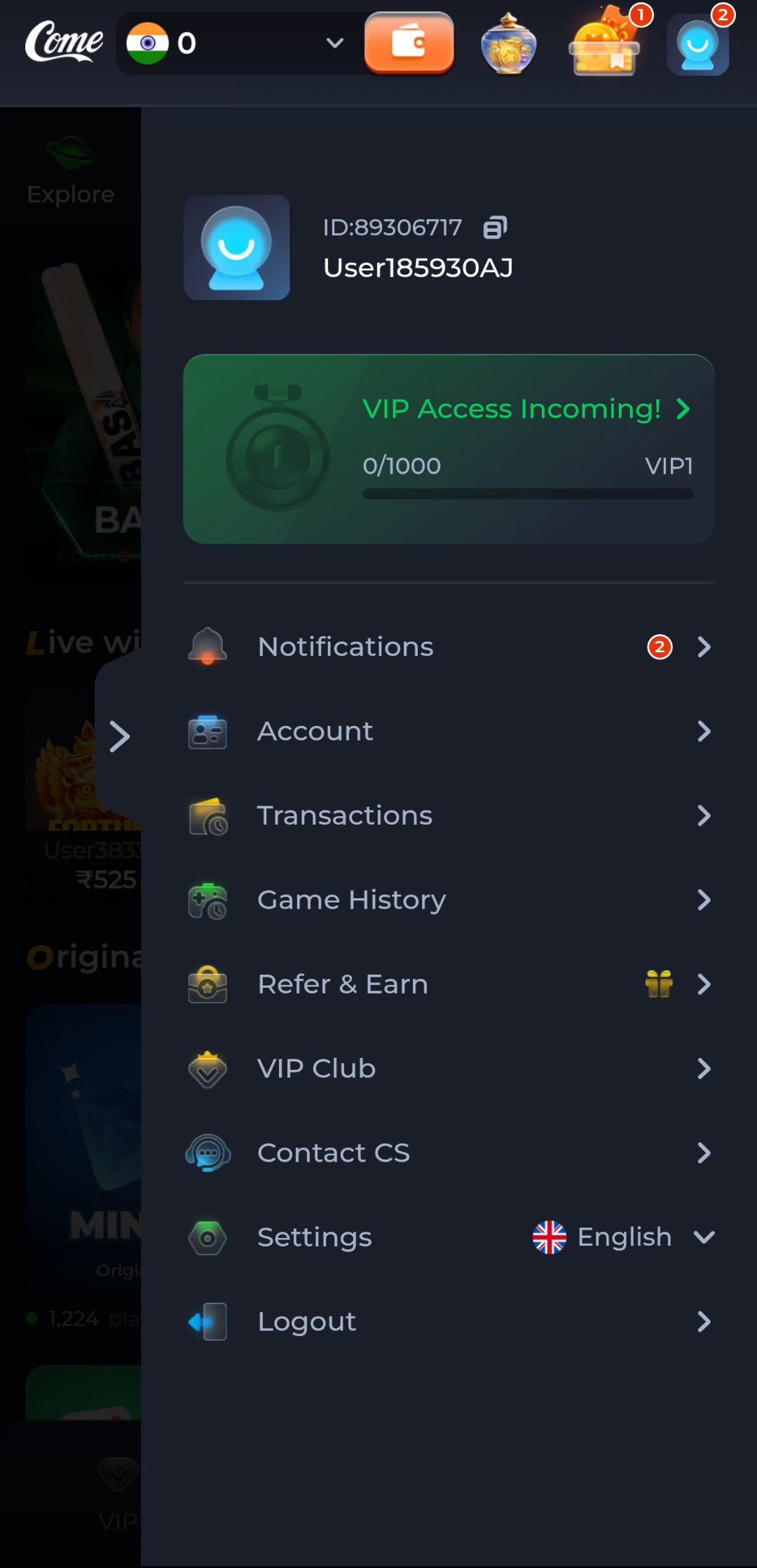
Before replacing a working COME installation, establish your current sign-in method and account identity through your own account screen. The profile menu shows an account area alongside history, settings and help. Keep account identifiers private and do not copy another person's visible details from a screenshot.
Installation changes software on a device. Registration creates or accesses a service relationship. Logging out ends a session. These actions are not interchangeable, and a reinstall cannot be assumed to recover an inaccessible phone number, merge accounts or transfer history.
Preserve the working starting point
If the app still opens, use its Settings and update route before searching for a different package. Note the installed version in Android's app information where available. Do not clear storage or uninstall as the first response to a slow screen, update conflict or forgotten password.
If you are moving to another phone, establish whether you can receive any verification messages required by the product's actual sign-in process. Do not assume a particular registration field or recovery option exists until you see it. A different device may require an additional check, so keep the old working access available while following legitimate instructions.
Deal with conflicts as conflicts
When an offered APK will not install over the existing app, preserve the exact error. Android package identity and signing compatibility matter more than a matching icon. A conflict may need clarification from the provider. Removing the old app simply to make the new file install can leave you with a different or inaccessible installation.
If the update succeeds but the app requests sign-in, use the account route you intended to retain. Do not create a second account just because the app has returned to an entry screen. If recovery is needed, use the product's current General help or Contact CS route.

Complete the continuity check
After a deliberate update or device move, confirm the expected account is active and inspect the information relevant to your task. Do not assume that every local setting or cached resource transfers automatically. If something is missing, describe the account and version context privately and preserve the previous working installation where practical.
A related situation to recognise
Clearing app storage can remove local settings and session information. Uninstalling can also change what remains on the device. Neither action should be used as an experiment for an unexplained account problem. First record the installed version, error and existing access method. Keep the device state stable while obtaining relevant help so that a software question does not become an additional account-recovery problem.
Questions about this task
Does uninstalling delete the online account?
Local removal and service-account deletion are different actions. Their exact effects depend on the product, so do not use one as a substitute for the other.
Should I register again after an update?
Returning users should use their intended existing-account route and seek recovery help if access fails.
Choose the next step
If this task is complete, continue from the stage you reached. If the symptom remains, keep the exact message and use the related guide only when it addresses that different question.
Android App Controls and Other Device Platforms